uifigure
Create a figure for app-style user interfaces.
📝Syntax
f = uifigure()
f = uifigure(Name, Value)
📥Input Arguments
Parameter Description
Name, Value Figure property name-value pairs. uifigure applies MenuBar = 'none', ToolBar = 'none', NumberTitle = 'off', Resize = 'on', WindowStyle = 'normal', and a default 560-by-420 pixel size before user-supplied properties.
📤Output Arguments
Parameter Description
f Graphics figure handle.
📄Description

uifigure creates a graphics figure configured for interface-oriented dialogs and controls. The returned handle can be used with get, set, close, delete, and as the parent for UI dialog functions.

Supported properties are the figure properties available in Nelson, including 'Name', 'Position', 'Visible', 'WindowStyle', 'Resize', 'Color', 'Tag', and callback properties.

💡Examples
Captured UI figure for the help image.
f = uifigure('Visible', 'off', 'Name', 'Results', 'Position', [100 100 420 260]);
uilabel(f, 'Text', 'Result:', 'Position', [80 150 90 24]);
uibutton(f, 'Text', 'Run', 'Position', [80 95 100 30]);
uislider(f, 'Position', [210 110 150 3], 'Value', 55);
drawnow();
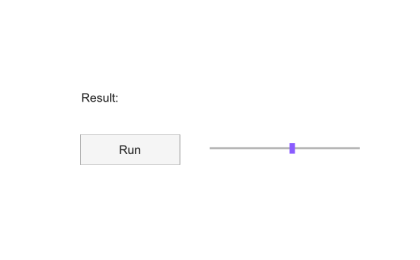
Example illustration
Create a named modal UI figure.
f = uifigure('Name', 'Results', 'WindowStyle', 'modal');
f.Name
close(f)
🔗See Also
dialoguialertuiconfirm
🕔Version History
Version Description
2.0.0 Introduced app-style UI figure.
Edit this page on GitHub