A Notebook is a single document that holds formatted text, Nelson code and the output of that code, in the order you arrange them. It is built from blocks: a heading, a paragraph, a code cell, an equation or an interactive control. Running a code cell shows its text output and its figures just below the code, so the explanation, the computation and the result stay together.
All the code cells of one document share a single workspace, the same base workspace used at the command line. A variable created in one cell is visible to the cells that run after it. This tutorial creates a document, runs it and saves it.
Open the editor
The notebook function opens the Notebook editor:
- notebook() with no argument opens a new, empty document.
- notebook(filename, 'edit') opens an existing document, and edit(filename) does the same for a .nlx file.
On the Nelson desktop you can also use the New Notebook button of the toolbar, or the Window menu. The editor opens as a tab of the web desktop, or, on the Qt desktop, as the Notebook window (one window, one tab per document). Without a desktop (nelson-cli, nelson-adv-cli) the editor cannot open and the call reports an error.
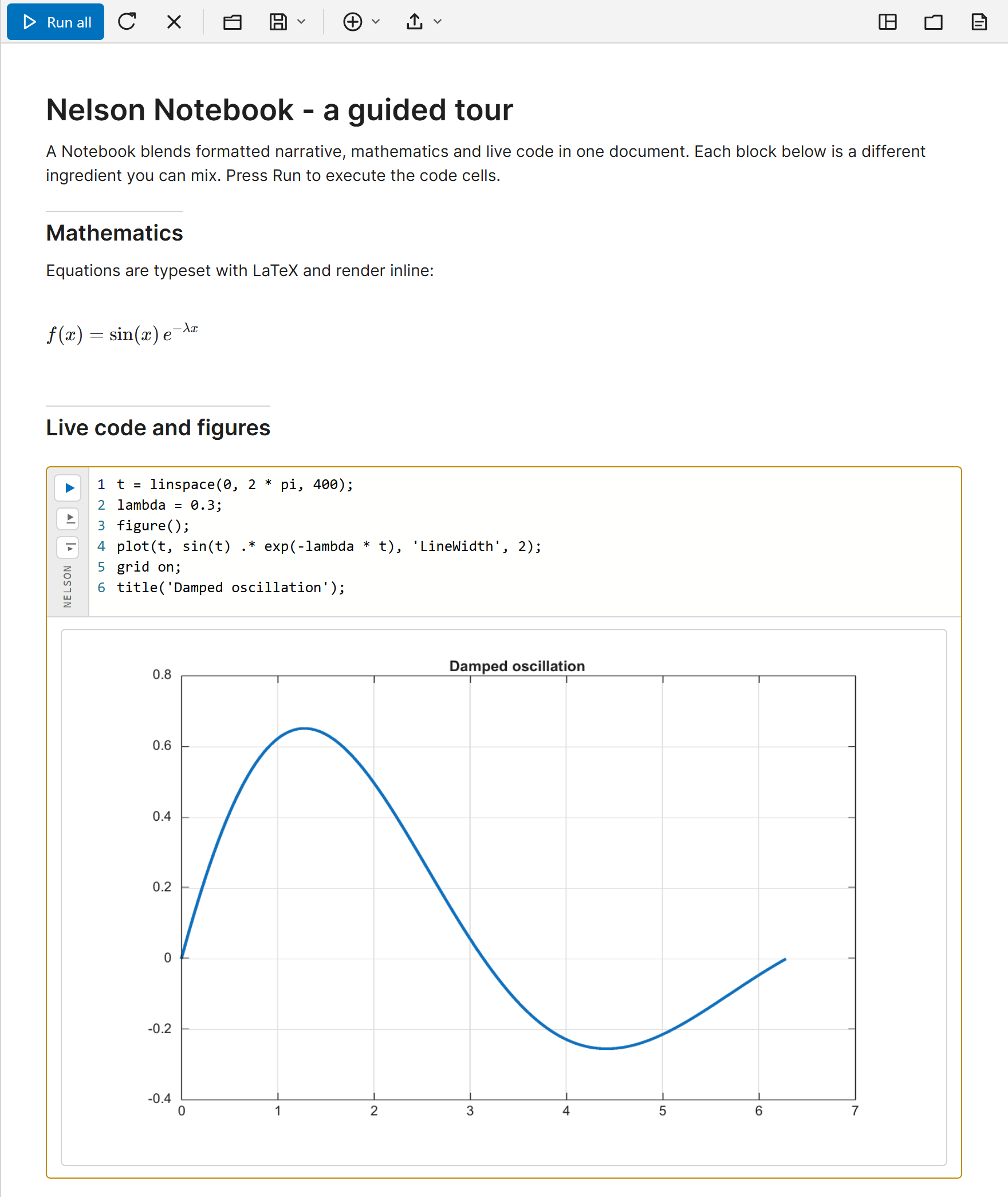
The editor shows a toolbar at the top and the document below. A new document already contains a short example you can run and edit.
Add text and code
Click in the document and type to write text. Press Enter to start a new block. To insert anything other than a paragraph, type / at the start of a line and pick an item from the list, or use the Insert menu of the toolbar. Choose Code cell to add a cell and type Nelson code in it, for example:
x = linspace(0, 2 * pi, 200);
plot(x, sin(x))
Run a cell
Each code cell has a run button in its left margin. Click it to run that one cell, or click Run all in the toolbar to run every code cell from top to bottom. The text output appears under the cell, and any figure the cell draws is shown inline, in the document, instead of a separate figure window.
The shared workspace
Because the cells share one workspace, you can split a computation across several cells. The value set in an earlier cell is used by a later one:
N = 200;
x = linspace(0, 2 * pi, N);
plot(x, sin(x))
What matters is the order in which the cells run, not their position on the page. If a later cell reports an unknown variable, run the earlier cells first, or use Run all.
Save your work
Use Save in the toolbar to write the document as a .nlx file, the native Notebook format. The .nlx container keeps the text, the code, the saved output and the figures together in one portable file. You can also save the document as a plain-text .m script with Save as Script. Reopen a saved document with Open, with edit(filename) or with notebook(filename, 'edit').
What next
The next tutorials describe the block kinds and the interactive controls, and how to run or share a document without the editor.